Google Gemini for Small Business: The New Hub Explained
Google Gemini for small business arrived in late October 2026, with a brand kit that remembers your look and money tools that explain messy spreadsheets. Here is what to try first, and what to leave alone.
The short answer: Google rolled out a business home inside the Gemini app in late October 2026, with a brand kit that remembers your look, money tools that turn messy spreadsheets into charts, and connections to Shopify, Canva, and Xero. It saves time on brand and money tasks, but it does not replace your bookkeeper, your designer, or your judgment.
Key numbers at a glance
- October 20-21, 2026 Google's small business Gemini tools reported rolling out globally in the Gemini app over the coming days
- 7+ connected app families named in the rollout: Google Business Profile, Google Ads, Google Workspace, plus Adobe, Canva, Dropbox, Shopify, Wix, Zoho, and Xero
- 1 brand kit to upload once: your website, fonts, colors, and style, remembered for flyers, social posts, and launch graphics
- Nano Banana 2.1 the image model named for the new end-to-end visuals for product launches and campaigns
- Tens of millions of small business owners already using Gemini for brainstorming, customer feedback, and performance checks, per Google's rollout note
- 14 days is the test window the guide recommends for the Gemini small business home, long enough to try the brand kit and money tools on real work, short enough to walk away if they do not fit.
- 2 features are the ones that matter in the rollout, brand memory and money clarity, because they solve daily annoyances instead of inventing new ones.
Last reviewed: October 2026. Rollout timing varies by account and region, and features may arrive over days, not all at once. Check what your own Gemini app shows before you promise a client a deadline based on it.
Most small business owners do not have a software problem. They have a tabs problem. The logo lives in Canva, the prices live in a spreadsheet, the reviews live on Google, the orders live in Shopify, and the person who knows where everything is just went on holiday. Google's pitch with the new Gemini small business home is simple: stop retyping the same facts into six apps, and let one place pull them together.
I have watched a lot of these launches. Most of them promise a revolution and deliver a nicer dashboard. This one is worth a closer look, because it lands inside an app millions of owners already open, and because the two features that matter, brand memory and money clarity, solve daily annoyances instead of inventing new ones. Here is what launched, what to try first, what to skip, and how to test it for two weeks without breaking anything that already works.
What actually launched in October
A Gemini small business home is a landing page inside the Gemini app built for daily owner tasks: building a brand, checking money, and understanding customers.

The main event is a business landing page inside the Gemini app, built as a home screen for daily owner tasks: building a brand, checking money, and understanding customers. Instead of starting from a blank chat box every time, you start from a place that already knows it is talking to a business owner. That sounds small, and it is, but it changes the prompts you have to write. You spend less time explaining context, and more time getting a usable draft.
The second piece is connections. Gemini now connects to Google's own tools, Business Profile, Ads, and Workspace, and to third party apps many small teams already pay for: Adobe, Canva, Dropbox, Shopify, Wix, Zoho, and Xero. The point is not that Gemini replaces those apps. It is that it can pull facts from them instead of you copying numbers by hand. A price from Shopify, a review from your Business Profile, a file from Dropbox, all in one working session.
Google says the tools are rolling out globally over the coming days to everyone on the Gemini app, and that tens of millions of small business owners already use Gemini for brainstorming products, handling customer feedback, and checking performance. Treat that last number the way you would treat any vendor number: as a sign of scale, not as proof that it works for your shop. Your test, on your data, is the only number that matters.
| Feature | What it does | Note |
|---|---|---|
| Brand kit | Upload your website, fonts, and colors once, and Gemini makes flyers and posts in your look | Built on image model Nano Banana 2.1 |
| Money tools | Turn messy spreadsheets, receipts, and purchase records into charts and interactive models | Check every number against your records before acting |
| Connected apps | Google Business Profile, Ads, and Workspace, plus Adobe, Canva, Dropbox, Shopify, Wix, Zoho, and Xero | Connect one app at a time and check permissions |
How does the brand kit remember your look?

Here is the feature I would try first. You upload your website, your brand kit, your fonts, and your colors once, and Gemini remembers the style. When you need a flyer, a social post, or launch graphics, it makes them in your look without you uploading the brand kit every single time. Google says this runs on a new image model called Nano Banana 2.1, built to deliver end-to-end visuals for product launches and campaigns.
Most small businesses live with one of two bad options. Pay a designer for every small asset, or cobble something together late at night and hope it looks on-brand. An assistant that remembers your colors and fonts, and just makes the thing, is a real practical win, especially for the weekly grind: a sale post, a new product photo caption, a holiday flyer, a menu change.
Do not hand it your whole brand on day one and walk away. Start with one asset type you make every week, like an Instagram post for a new product. Make five in Gemini, compare them side by side with your last five real posts, and keep the ones a customer would believe came from you. If the colors drift, the fonts wander, or the logo looks melted, fix the brand kit inputs before you blame the model. Bad inputs give you bad outputs, in branding as in everything else.
One rule that will save you embarrassment: never publish an AI image with text you have not read letter by letter. AI image models still misspell words, swap letters, and invent prices. Check every word, every price, every date, and every phone number before the post goes out. A flyer with the wrong sale date is worse than no flyer at all.
How do the money tools explain your spreadsheets?
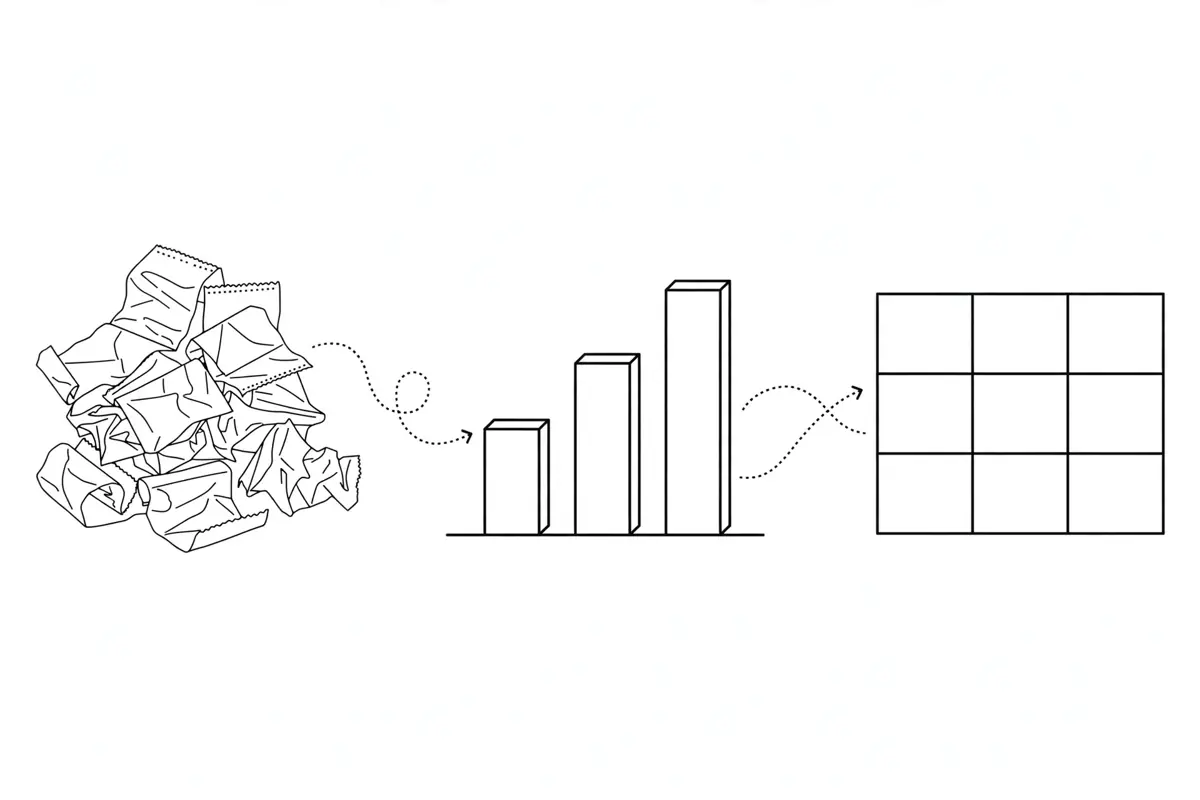
The second feature that matters is the money side. Gemini can take messy spreadsheets, receipts, and purchase records and turn them into clear graphics and interactive models in seconds. If you have ever stared at a spreadsheet wondering what it is trying to tell you, you know why this matters. Most owners do not need fancier accounting. They need to see, at a glance, which product makes money, which month dips, and where costs crept up.
Use it for questions, not for answers you will act on blind. Ask it to show your top five costs, your slowest month, or the trend in one supplier over six months. Then check the numbers against your own records before you change a price or cut a supplier. AI tools are good at spotting patterns and bad at knowing which numbers in your messy sheet are typos. One mistyped zero can turn a quiet month into a crisis in a chart, and a chart that looks confident is easy to believe.
Keep sensitive money data in mind too. Receipts and purchase records carry supplier names, prices, and sometimes personal details. Before you upload a full year of records, check what your Gemini plan does with uploaded files, and strip out anything the task does not need. Upload the columns for the question you are asking, not your entire accounts file. That habit protects you whether the tool is Google's or anyone else's.
Connected apps: one place, or just one more tab?

Connections are where this launch either saves you an hour a week or becomes one more tab you ignore. The test is simple: pick one real weekly task that currently needs three apps, and do it through Gemini instead. For example, check a product price in Shopify, pull a recent review from your Business Profile, and draft a social post in your brand style, all in one session. Time it. If it is not faster than your old way by week two, disconnect it and move on.
Be picky about permissions. A tool that can read your ads account, your shop, and your files is powerful, and power needs limits. Connect one app at a time, check what it can read and what it can change, and never give an assistant permission to publish, send, or spend without your approval. Google's own rollout note makes the same point for AI tools in general: owners stay in control, and actions like publishing, sending, or spending need approval. Hold every tool to that standard, including this one.
Also check the order of work. If Gemini drafts a post from your shop data, you still approve it. If it suggests a price change from your sales data, you still decide it. The assistant is a fast junior helper, not a manager. The moment you let it publish without a check, you own whatever it publishes, typos and all.
What Gemini should not touch yet

Let us be blunt about limits, because launches never are. Do not use Gemini, or any chatbot, as your only source for tax, legal, or safety advice. It can explain a concept, draft a checklist, or summarize a rule, but it cannot know your local law, your contract, or your full facts. For anything that could cost you money, a fine, or a customer relationship, get a human professional to check it.
Do not let it message customers on your behalf without review, either. A friendly draft is one thing. An auto-sent reply that promises a refund, a delivery date, or a price you cannot honor is another. Keep a human in the loop for every customer-facing message until you have tested the tool on your real questions for at least a month.
And do not replace your bookkeeper with a chart. Charts explain the past. A bookkeeper, an accountant, or a good finance habit tells you what to do about it, what tax is due, and what cash you actually have. Use Gemini to see your money more clearly, then take the decisions to a person who is accountable for them.
How do you set it up in an afternoon?
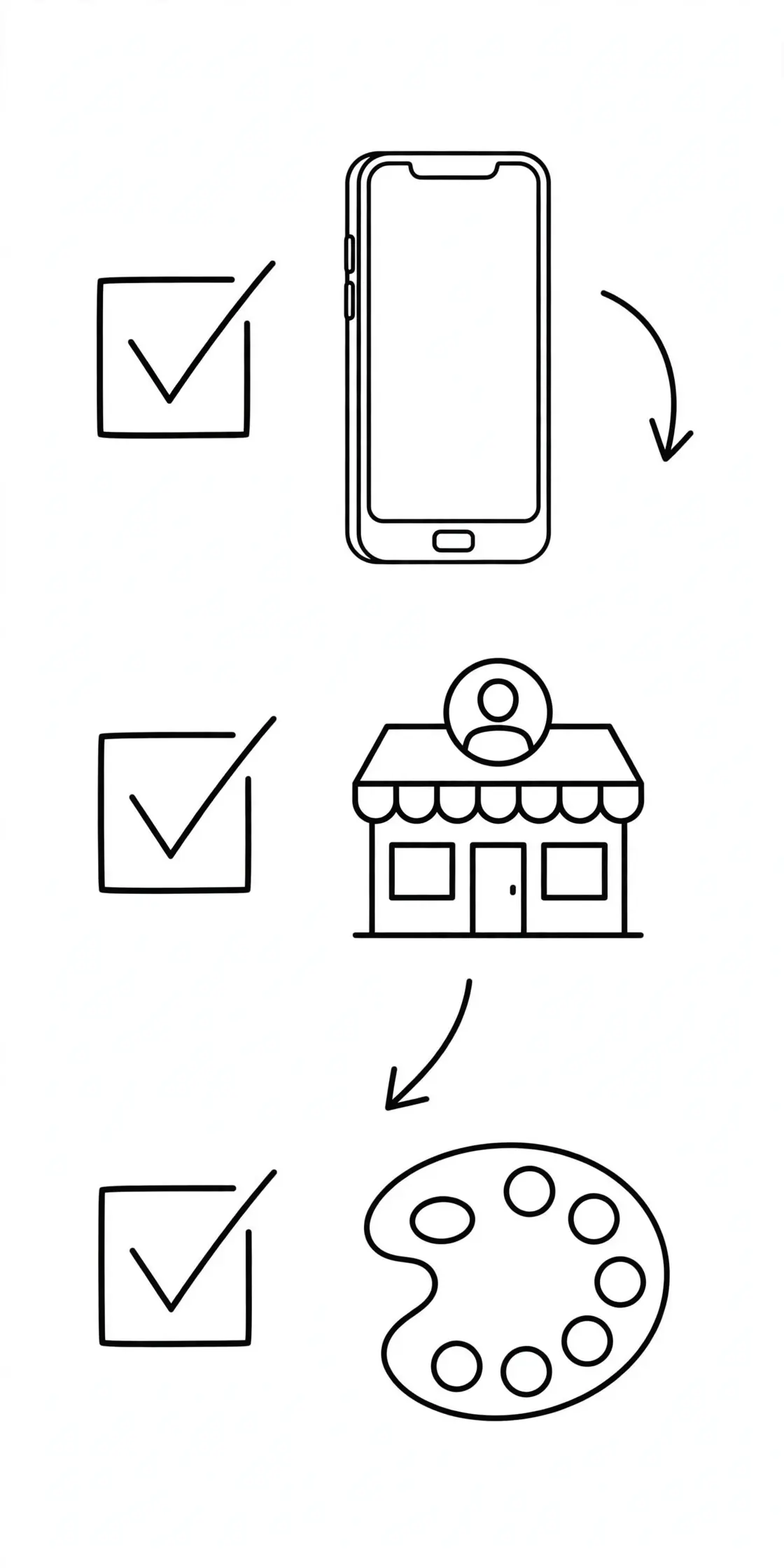
You do not need a project plan for this. You need an afternoon and a short list. First, open the Gemini app and look for the business home screen. If it is not there yet, wait, because rollout timing varies, and do not pay for a third party tool that claims to open it early. Second, add your business basics: your website, your Business Profile link, and a one paragraph description of what you sell and who buys it. Third, upload your brand kit: logo, colors, and fonts, and one or two examples of posts you are proud of.
Fourth, connect one app, not all of them. Pick the one tied to your most repeated weekly task, often your shop or your Business Profile, and test it for a week before you add the next. Fifth, write down three tasks you will use Gemini for, and three you will not. For example, you will use it for social drafts, flyer ideas, and sales summaries. You will not use it for refunds, contracts, or tax filings. That short list stops the tool from slowly taking over jobs it should not have.
Finally, tell your team what changed. If staff will see Gemini drafts, show them where drafts live, who approves them, and what never gets auto-sent. A tool that only the owner understands becomes a bottleneck, not a helper.
How do you run the 14 day test?

Here is a test you can run without risking your business. Week one: use Gemini for brand tasks only. Make five social posts, two flyers, and one product launch graphic, all in your brand style, and track how long each one takes versus your old way. Week two: use it for money clarity only. Ask it to chart one cost trend, summarize one month of sales, and explain one messy spreadsheet, then check every number against your records.
Score it on three things at the end of two weeks. Time saved, in minutes per task, not vibes. Quality, judged by whether a customer would believe the output came from you. And errors, counted honestly, including misspelled text in images, wrong numbers in charts, and drafts you had to rewrite from scratch. If it saves time, holds quality, and makes few errors, keep it and expand to one more task. If it saves time but needs heavy fixing, keep it only for drafts, never for publishing. If it does not save time at all, drop it without guilt. Not every new tool deserves a place in your week.
One more thing worth doing in week two: ask your customers nothing. Seriously. Do not announce that your posts are now AI-assisted. Just publish good work, on brand, on time, and see if anyone notices a difference. Good tools disappear into good work. If customers start asking why your posts look different, that is data too, and it usually means the brand kit needs fixing, not that AI is doomed.
The bottom line
The Gemini small business home is worth a 14 day test, not a rebuild of your workflow. Start with the brand kit on one weekly asset, make five versions, and compare them with your last five real posts. If customers cannot tell the difference, the tool earns its place. If colors drift or text misspells, fix the brand kit inputs first.
Use the money tools for questions, not for blind answers. Charts from messy spreadsheets are useful when they show which product makes money and where costs crept up, but every number must be checked against your own records before you act on it. The same check applies to every AI image: read every word, price, and date letter by letter before it goes out.
The line the guide draws is clear. Gemini saves time on brand and money tasks, but it does not replace your bookkeeper, your designer, or your judgment. Keep it for drafts and weekly assets, test it for two weeks, and drop it without guilt if it does not save time at all.
Test it as a home, not as a rebuild. Upload the brand kit once, connect the apps you already use, and run the 14 day test on one real launch or campaign before you move any workflow into Gemini. The rollout matters because tens of millions of owners already open the app, but a tool that only remembers your fonts is not a business system, and the test is what proves whether the money tools actually replace a spreadsheet or just add another tab.
Frequently asked questions
Is Google Gemini for small business free?
The business home lives inside the Gemini app, which has a free tier, and Google says the new tools are rolling out to everyone on the app. Some advanced features may sit behind paid Gemini plans, and pricing varies by plan and region, so check what your own account shows before you budget around it.
Does Gemini replace Canva, Shopify, or my accounting tool?
No. It connects to them and pulls facts from them, but it does not replace a design tool, a shop platform, or an accounting system. Think of it as a helper that sits across your tools, not a new tool that swallows them.
Can Gemini post to my social accounts or shop without asking?
Do not let any assistant do that. Keep publishing, sending, and spending on manual approval, and check permissions when you connect each app. If a tool asks for auto-publish access, say no until you have tested it for weeks on drafts only.
What if the business home is not in my Gemini app yet?
Wait. Google says the rollout happens over days, and timing varies by account and region. Keep using your current tools in the meantime, and do not buy a third party add-on that claims to open a Google rollout early.
Is my business data safe in Gemini?
Check your plan's data controls before you upload sensitive files, and upload only what the task needs. Strip out full accounts files, personal details, and anything a chart does not need. For regulated or client-confidential work, ask a professional before you connect that data at all.
For the wider picture, read our 10 AI tools that save small businesses 15+ hours a week for where Gemini fits in a full stack, our AI agents for small business guide for the next step beyond chat, and our guide to getting cited by ChatGPT and AI search for why your Business Profile facts matter more than ever.
Want more practical guides like this?
Browse all 82 guides across 10 categories, no fluff, no paywall.
Browse all guides →Explore AI guides